Get started
Your first season, start to finish.Nine steps, one afternoon and one match.
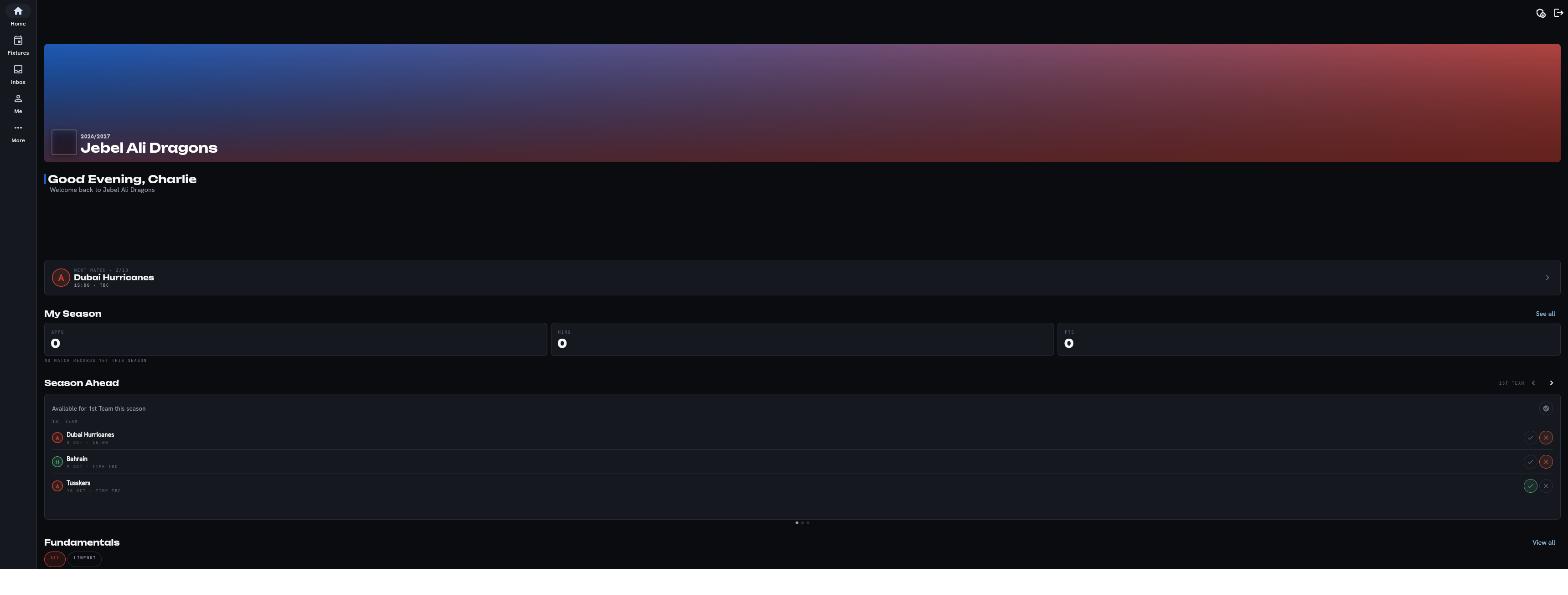
This is the whole route from an empty club to a season on record. Every screen below is the app themed to a club, so you can see the shape of the thing before you sign up for it.
Your club's colours, our machinery
The chrome steps back so a club or school reads as itself. Pick one and the page takes its colours.
Before you start
What you need to hand
A fixture list, an age group and the names of your coaches. Nothing else is needed on day one.
Steps 01 to 04 are club setup and take an afternoon between them. Steps 05 to 07 are one week of one team, and after that they repeat on their own. Step 08 happens on a Saturday and step 09 is the part you do not have to do, because it is the record the other eight steps leave behind.
You can stop after step 02 and come back a fortnight later. Nothing goes out to a member, a player or a parent until you invite them.
The walkthrough
Nine steps, in order
Each step names the screen it happens on and how long it honestly takes.
Create your club
Sign up, name the club or school, choose the sport and set your season dates. You are the owner from that moment, which means you decide who else gets a key and what each key opens. Nothing is visible to anyone else until you invite them.
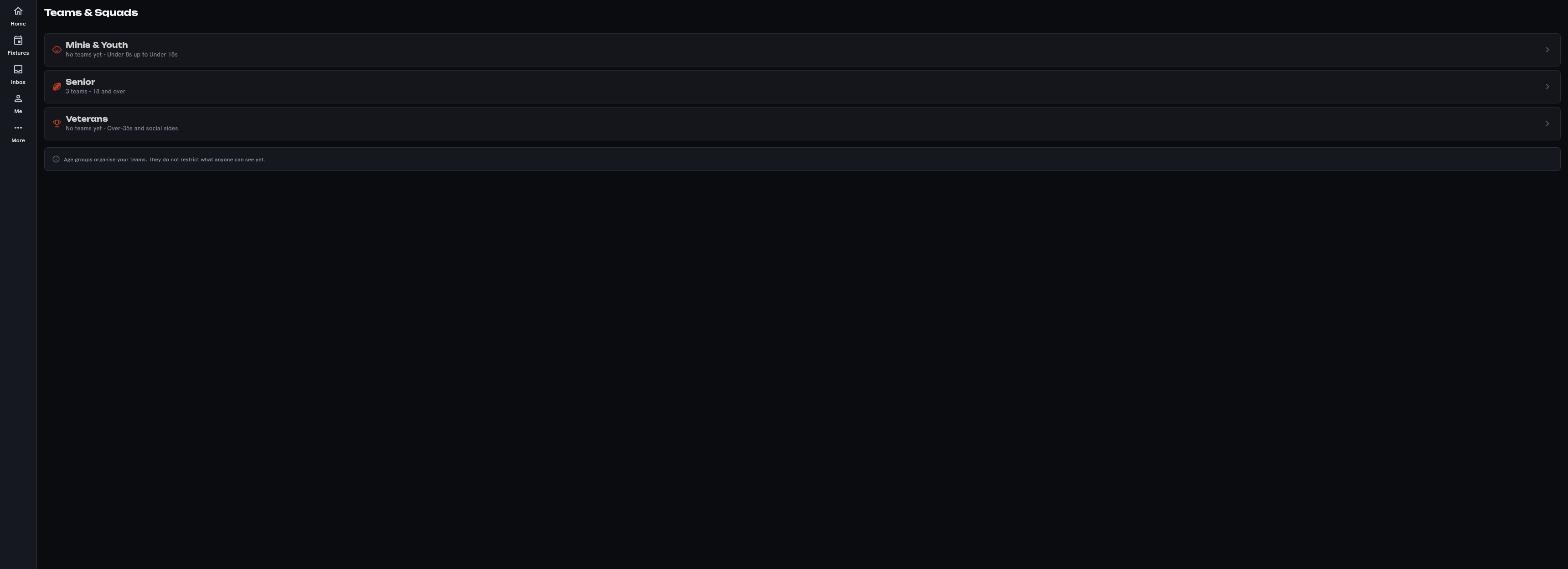
Set up teams and age groups
Create a team for each age group or squad you actually run, from the minis to the senior side. Each team carries its own roster, its own coaches and its own fixtures, so an under-13 parent never sees the senior squad's week. Add the coaches you already know about now, and grant the rest of the committee their permissions one at a time later.
Invite your members
Members join with a club invite code rather than a link anyone can forward on. Send it out however you normally reach people, and each person who uses it lands on your registration queue instead of straight into the club. You review them one by one, so the roster stays the list you meant it to be.
Harriers RFCINVITESRegistration queue
- Invited
- 84
- Joined
- 61
- Awaiting review
- 7
Members joined, 73 per cent
Parents join and link their children
A parent creates their own account and asks to be linked to their child. That request comes to the club for approval, not to the child. In a safeguarding-enforced club an under-18 must have a guardian on file, and until a link is approved a parent sees nothing at all.
Harriers RFCAPPROVALSParent links awaiting review
- Requests
- 12
- Approved
- 9
- Guardian on file
- Required
Links approved, 75 per cent
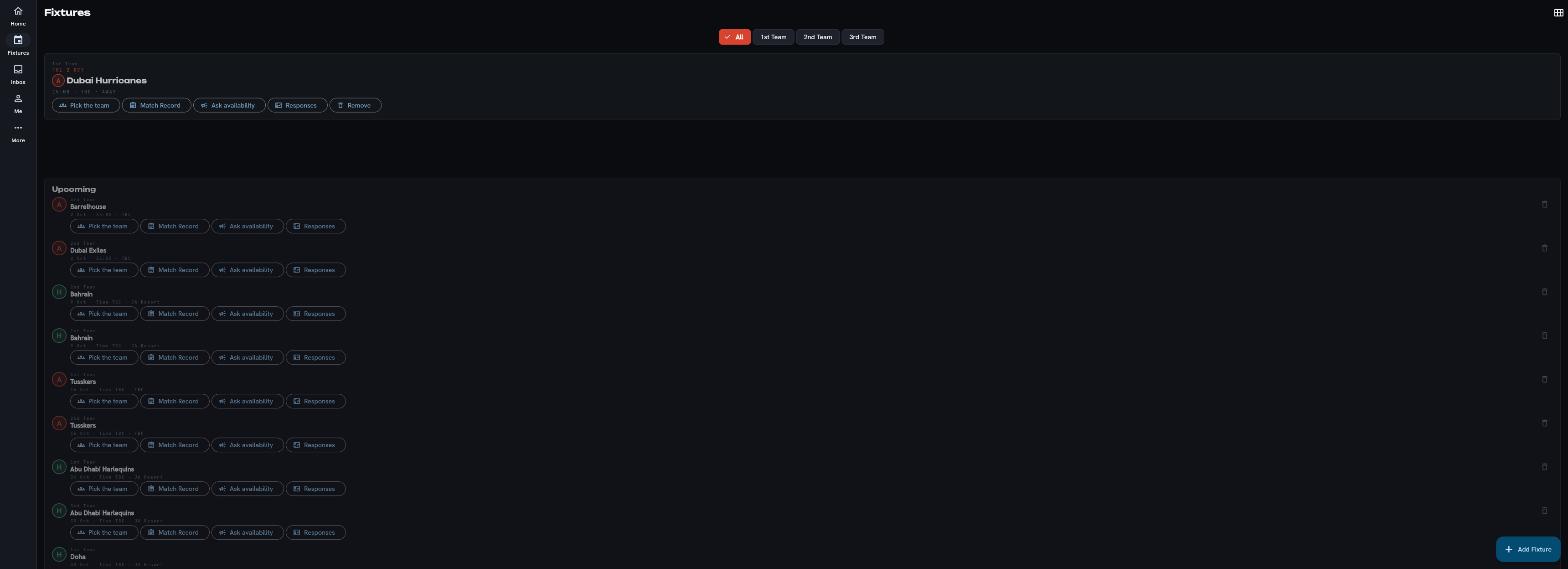
Set availability for the first fixture
Put the fixture in with a date, a kick-off time and a venue, then send the availability request to the squad. Players answer on their own phone, and parents answer for the younger age groups. You stop chasing a group chat and start reading a count.
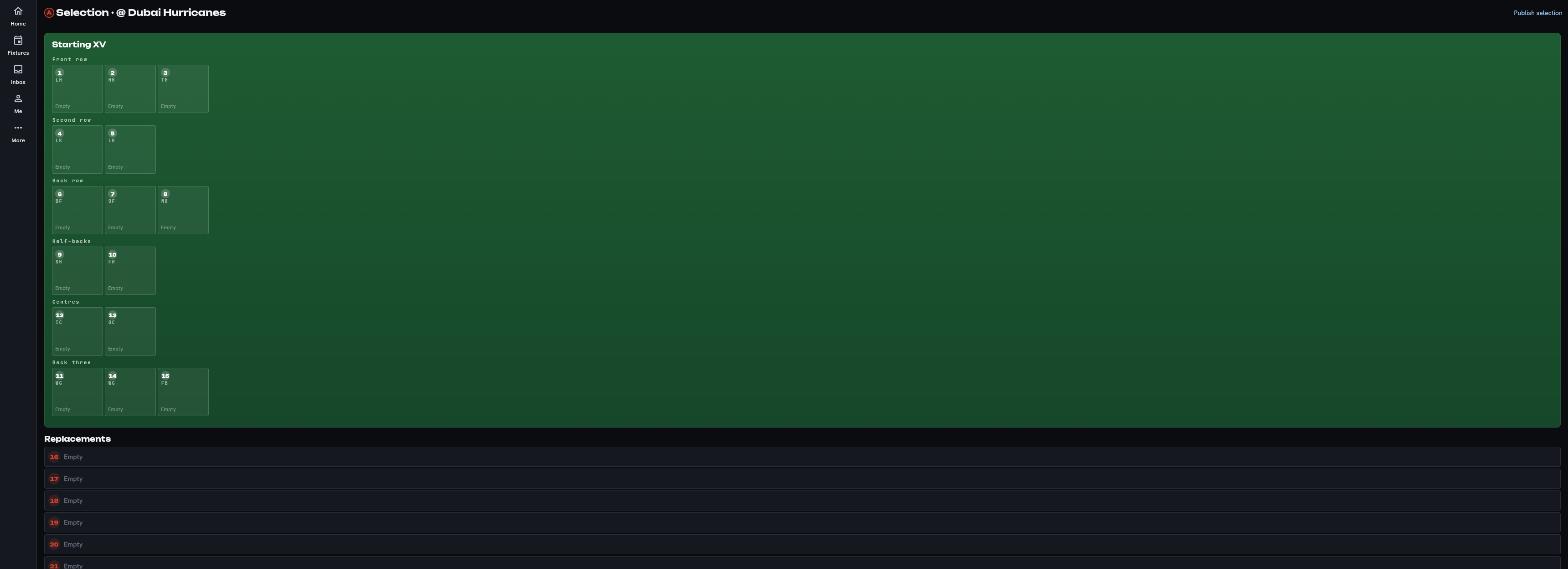
Pick the team
Open the selection board and build the side from the players who said yes. Availability, position and recent minutes sit beside each name, so you are not picking from memory. Nothing is visible to the squad while you work, because selection stays yours until you publish it.
Publish the team sheet
Publishing sends the team sheet to the players you picked and to the parents linked to them. Everyone reads the same sheet, with the meet time and the venue on it, rather than a screenshot of a message. Change it later and the change goes out, because there is one live version instead of four.
Harriers RFCPUBLISHEDUnder 15s v Ashcombe, team sheet
- Players notified
- 19
- Parents notified
- 23
- Status
- Published
Squad notified, 100 per cent
Match day: reminders and the match record
Kick-off reminders go out on their own, so the morning is not spent texting. During the match, or on the drive home, you open the match record and put in the result, the minutes each player got and anything that happened, including an injury or a head injury assessment. It is a few minutes of work and it is what every later view is built from.
Harriers RFCTODAY 14:00Under 15s v Ashcombe, match record
- Kick-off reminder
- Sent
- Result
- 24 - 17
- Minutes logged
- 12 / 19
Match record, 63 per cent
The season record: minutes, injuries, standing
After a few weeks the club has a history rather than a pile of messages. Minutes played per player, squad workload across the season, injury and head injury assessment records, and who turned out for whom. A parent sees their own child's version of that and nobody else's, and when the committee turns over next summer the record stays with the club.
Harriers RFCSEASONUnder 15s, season to date
- Matches played
- 14 / 19
- Minutes logged
- 6,412
- Injuries on record
- 4
Season played, 74 per cent
None of it is one way. Teams can be renamed, fixtures moved, permissions taken back and a team sheet republished.
Start
Create the club, or watch someone else do it first
Sign up and work through the nine steps yourself, or take half an hour with the person building it and we will set your first team up on the call.